Sliders
The default JSlider component included with Java Swing is fairly basic:

This allows the user to choose a numeric value on a scale from some minimum value to some maximum value. This is functional, but wouldn't it be nice if there were some customization options here?
Introducing SliderField
The SliderField component in swing-forms wraps a JSlider and exposes some useful configuration
for making it more visually useful and interesting. You can of course generate a plain slider field
like the one pictured above, but there are some options here that are worth looking at in more detail.
Adding a value label
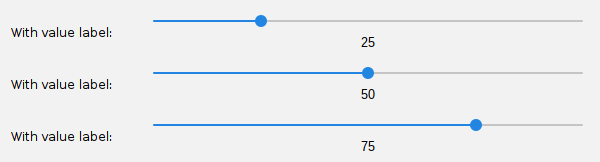
The first thing we can do with SliderField is add an optional value label that will appear underneath
the slider as the user moves the grab bar:
SliderField mySlider = new SliderField("With value label:", 0, 100, 25);
mySlider.setShowValueLabel(true); // Enables the display of the value label
This results in a numeric label that will show the current value of the slider. Here are three such sliders with values of 25, 50, and 75, to show what this looks like:
Adding a custom color gradient
Now let's ditch the boring standard UI and look at some ways of offering visual feedback to the user as the grab bar is moved:
SliderField mySlider = new SliderField("Custom colors:", 0, 100, 25);
mySlider.setColorStops(List.of(Color.BLACK, Color.BLUE, Color.CYAN, Color.WHITE));
mySlider.setShowValueLabel(true);
In the above code, we tell the slider to start with a black background on the left side of the slider, moving through blue, then cyan, and ending with white on the right side of the slider. It looks like this:
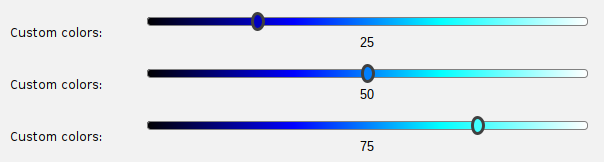
We can add as many color stops as we like, and the gradient will be automatically computed and rendered
by the SliderField without any further code required. Notice that the grab bar also changes color as
you adjust its position on the track.
Custom non-numeric labels
The last thing we can do with SliderField to differentiate it from a regular JSlider is to add
custom, non-numeric labels to it. Suppose we want to offer the user a choice from a short list of
options representing a range of something. We could use a ComboField with the options laid
out as Strings:
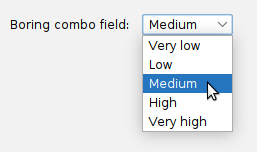
But wouldn't it be nice if we could visually represent this range? Well, with SliderField, we can!
SliderField mySlider = new SliderField("Custom labels:", 0, 100, 0);
mySlider.setColorStops(List.of(Color.RED, Color.YELLOW, Color.GREEN));
mySlider.setLabels(List.of("Very low", "Low", "Medium", "High", "Very high"), false);
This sets up a color gradient of red representing "very low" values, up to yellow representing "medium" values, and then to green, representing "high" values:
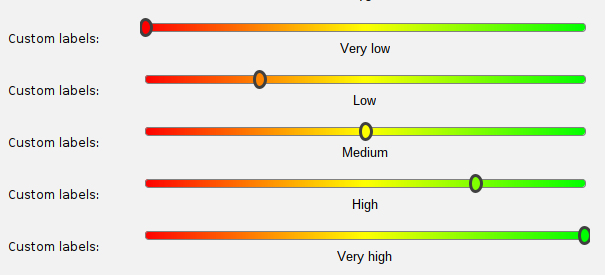
This allows SliderField to serve as a more visually interesting substitute for a ComboField for
certain value selections!
Note that the number of color stops does not have to match the number of custom labels! The SliderField class
is smart enough to interpolate as needed. In the example above, you'll note that we only supplied three
color stops, but five custom labels. This is not a problem. The SliderField will do the right thing.
Showing both text and numeric labels together
You also have the option of showing both the custom text labels and also a numeric label representing
the actual behind-the-scenes numeric value, if you wish, by setting the last parameter to the setLabels()
method to true:
// Let's see both our text labels and also the numeric label:
mySlider.setLabels(List.of("Very low", "Low", "Medium", "High", "Very high"), true);
That looks like this:
