Panel effects
Just for fun, swing-extras includes some simple panel effects that you can use to add
visual effects to any JPanel (or subclass thereof) in your Swing application.
BlurLayerUI
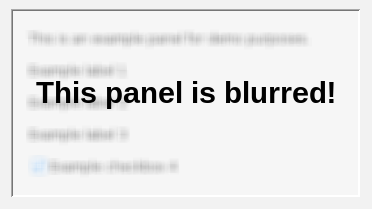
The BlurLayerUI class allows you to apply a blur effect to a panel, to obscure its contents.
An optional text overlay can be rendered on top of the blur panel to explain why the panel is blurred.
For example:
// Create a BlurLayerUI and apply it to a panel:
BlurLayerUI blurUI = new BlurLayerUI();
JLayer<JPanel> blurLayer = new JLayer<>(myPanel, blurUI);
containerPanel.add(blurLayer);

// Now we can blur it!
blurUI.setOverlayText("This panel is blurred!");
blurUI.setBlurIntensity(BlurLayerUI.BlurIntensity.STRONG);
This creates an effect like this:
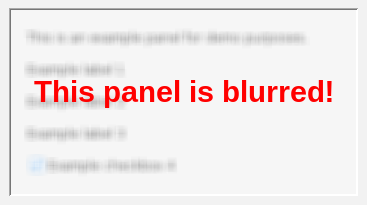
We can customize this, for example by changing the overlay text color:
blurUI.setOverlayTextColor(Color.RED);
This results in:
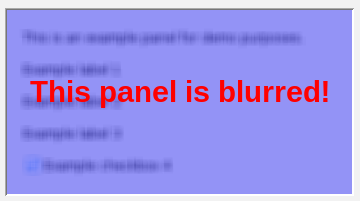
Or, we can add a color tint to the blur effect itself, like this:
blurUI.setBlurOverlayColor(Color.BLUE); // semi-transparent blue tint
This gives us:
We can also vary the intensity of the blur from mild to extreme. On the weakest setting, the underlying panel contents are still somewhat visible:
blurUI.setBlurIntensity(BlurLayerUI.BlurIntensity.MILD);
This produces:
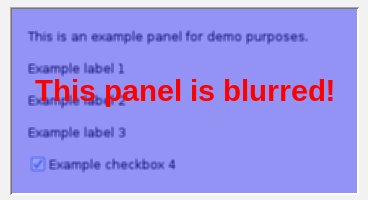
We see that the panel contents are legible, behind the blur overlay. We can make the blur
much stronger by setting the intensity to STRONG or EXTREME. Here is what the EXTREME
setting looks like:
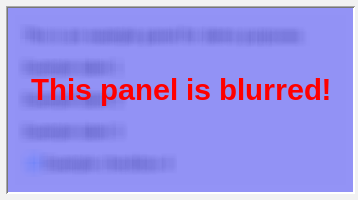
Now, we see that the original panel contents are unrecognizable.
An interactive demo of BlurLayerUI is provided in the built-in demo application.
There, you can experiment with the various settings to see how they affect the appearance of the blur effect.
FadeLayerUI
If you need to replace the contents of a panel (that is, remove all existing components and add new ones),
you can use the FadeLayerUI class to create a smooth fade-out/fade-in transition effect, rather
than simply swapping the contents abruptly. This is set up largely the same way the BlurLayerUI is, with
the exception that we provide a Runnable that is executed when the fade completes, so that we can
swap in the new contents. For example:
// Create a FadeLayerUI and apply it to a panel:
FadeLayerUI fadeUI = new FadeLayerUI();
JLayer<JPanel> fadeLayer = new JLayer<>(myPanel, fadeUI);
containerPanel.add(fadeLayer);

fadeUI.fadeOut(() -> {
    // Swap panel contents here...

    // Then, we can fade in on the new panel:
    fadeUI.fadeIn(null);
});
With default fade settings, it looks like this:
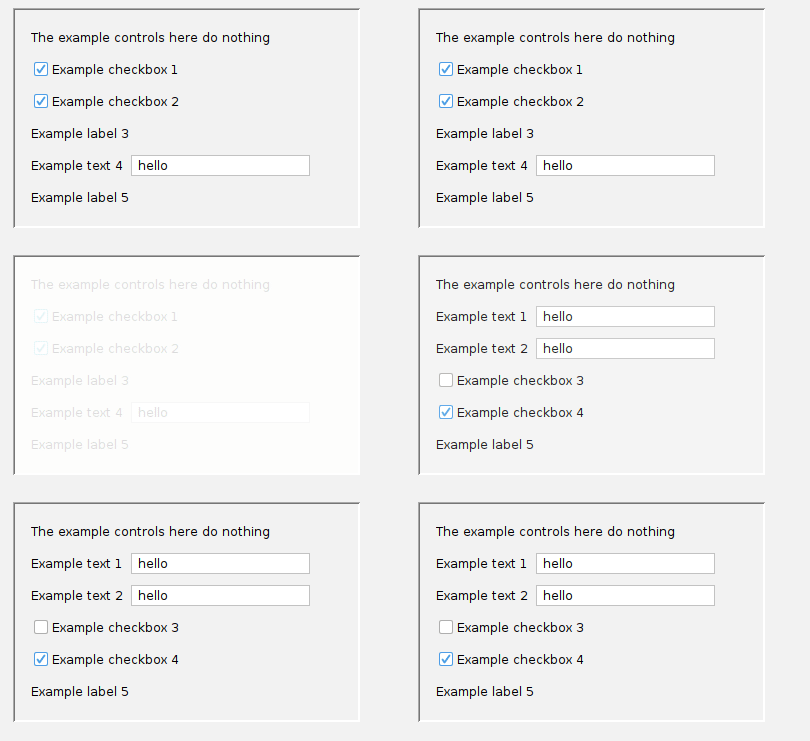
We can customize the fade duration, animation speed, and fade color. For example:
// Make the fade transition last longer:
fadeUI.setAnimationDuration(FadeLayerUI.AnimationDuration.VeryLong);

// Let's fade to blue instead of the default white:
fadeUI.setFadeColor(Color.BLUE);

// We can control the FPS of the animation too:
fadeUI.setAnimationSpeed(FadeLayerUI.AnimationSpeed.MEDIUM);
Now, our fade looks like this:
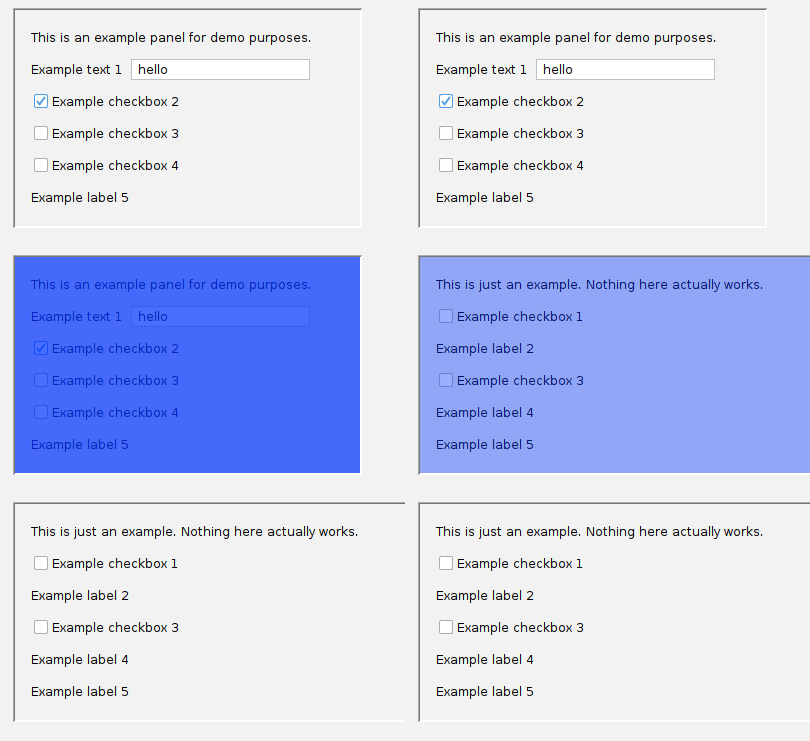
Pretty neat!
Falling snow
This one has absolutely no practical purpose whatsoever, but if you've ever wanted to animate
falling snowflakes on top of a panel, well, this one's for you! The SnowLayerUI class provides a simple
way to add falling snow animation to any JPanel. For example:
// Create a SnowLayerUI and apply it to a panel:
SnowLayerUI snowUI = new SnowLayerUI();
JLayer<JPanel> snowLayer = new JLayer<>(myPanel, snowUI);
containerPanel.add(snowLayer);

// Let's make the snow gray instead of white,
// so we can see it more easily:
snowUI.setSnowColor(Color.GRAY);

// Start the snow animation:
snowUI.letItSnow(true); // Let it snow!
This produces gently falling snowflakes over the panel, like this:
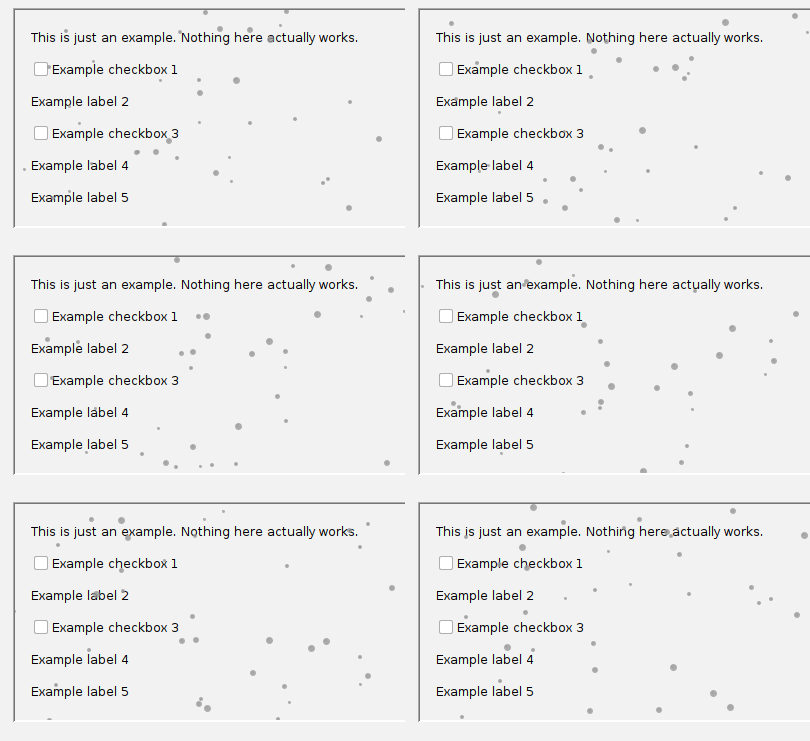
We can change the amount of snow, and also introduce "wind" (horizontal drift) if we want:
snowUI.setQuantity(SnowLayerUI.Quantity.VeryStrong);
snowUI.setWind(SnowLayerUI.Wind.MildRight); // gentle, to the right
That results in:
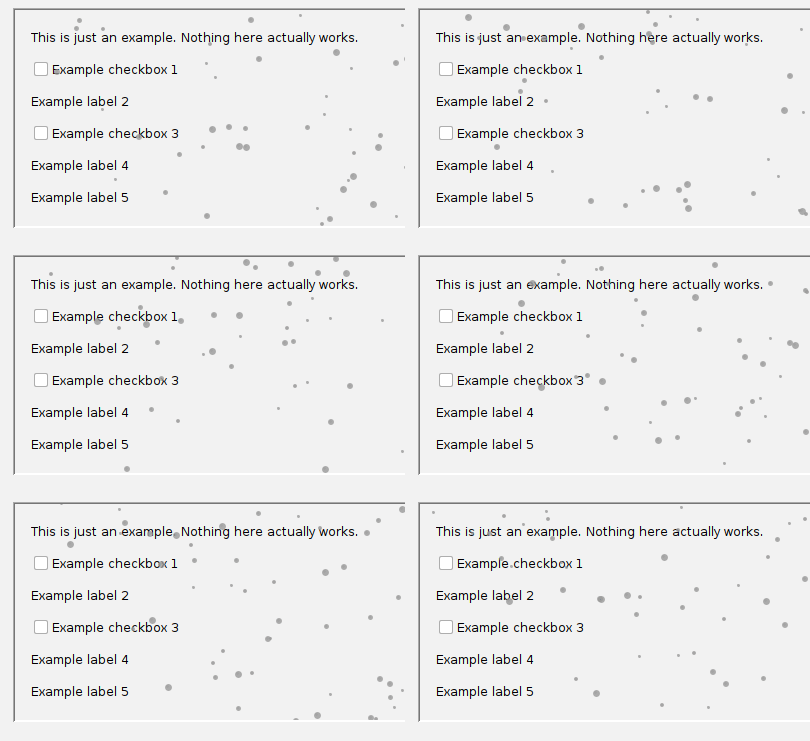
Unlike with the BlurLayerUI or the FadeLayerUI, when the snow is falling, the underlying panel remains fully interactive, so users can still click buttons, enter text, etc.
Interactive demo
The built-in demo application contains an interactive demo of all of these panel effects. Try them out for yourself! Perhaps they can be fun additions to your own applications.